Desktop Guide
Video Import
Upload local videos and assign them to projects.
What This Feature Does
Video Import adds local MP4, MOV, MKV, or AVI files and stores metadata, status, and project assignment.
Why Users Need It
Use it for videos you own, client recordings, camera files, podcasts, interviews, and screen recordings.
Where To Find It
Import -> Upload Video.
Before You Start
- Supported local video file
- Correct project selected
- Enough disk space
Step-by-Step Guide
- Open Upload Video.
- Choose project.
- Select video file.
- Confirm file details.
- Start import.
- Monitor Processing Queue.
- Open imported video in Clip Editor.
Screenshot Section
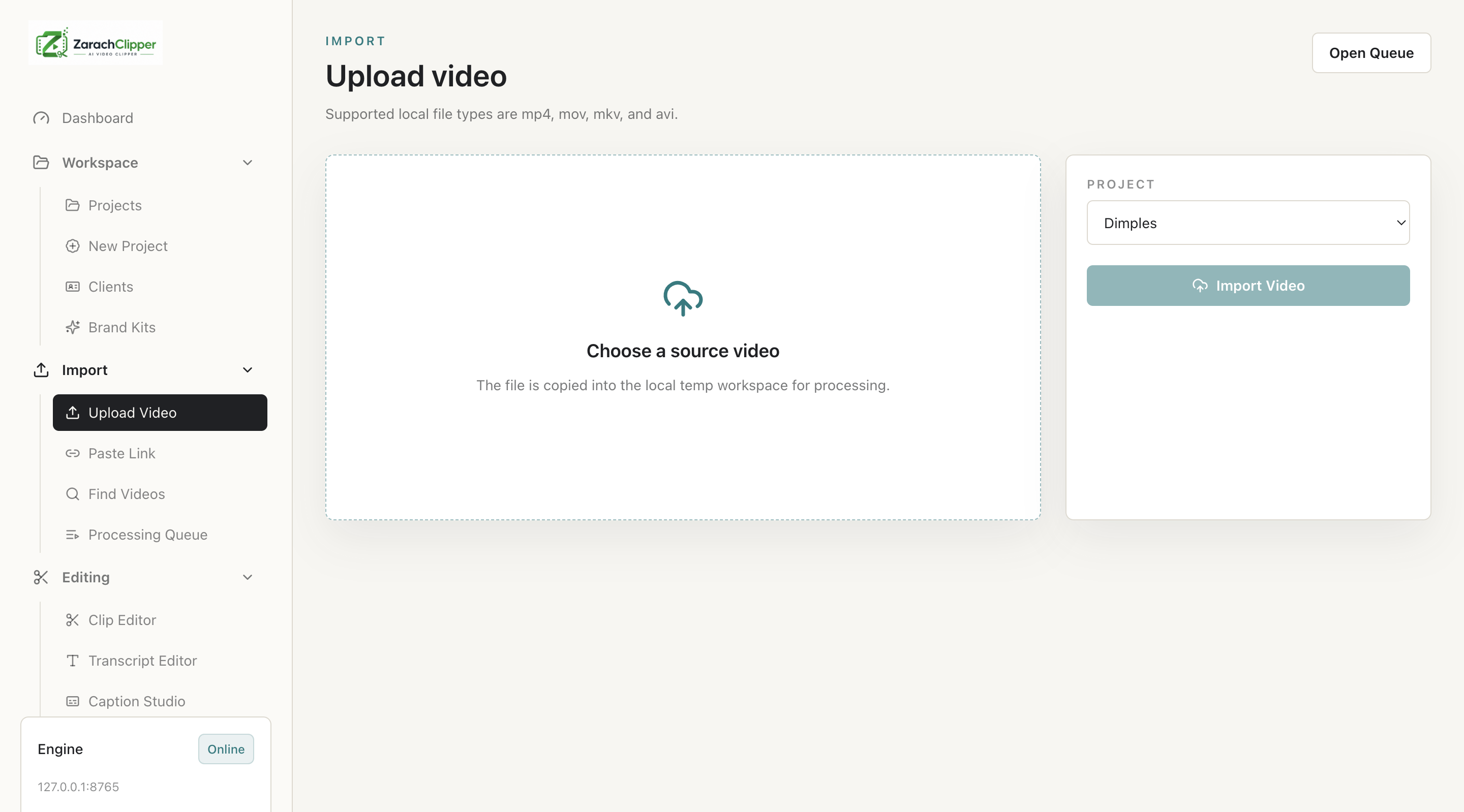
What To Check On The Screen
- File type is supported
- Project is correct
- Import status completes
Expected Result
The local video becomes available for transcript, clip discovery, preview, and export.
Common Mistakes
- Uploading unsupported file types
- Closing app during import
Troubleshooting
If import fails, check queue error, disk space, FFmpeg/FFprobe, and Error Logs.