
Desktop Guide
Processing Queue
Monitor import, transcription, detection, render, export, upload, and sync jobs.
What This Feature Does
The queue shows job type, status, progress, stages, errors, and available recovery actions such as retry or cancel.
Why Users Need It
Users need it to know what the engine is doing and recover failed work.
Where To Find It
Import -> Processing Queue.
Before You Start
- Local engine ready
- At least one running or completed job for meaningful screenshots
Step-by-Step Guide
- Open Processing Queue.
- Review queued/running/completed/failed jobs.
- Open failed job details.
- Retry recoverable failures.
- Cancel unwanted jobs.
- Restart engine if jobs remain stuck after a crash.
Screenshot Section
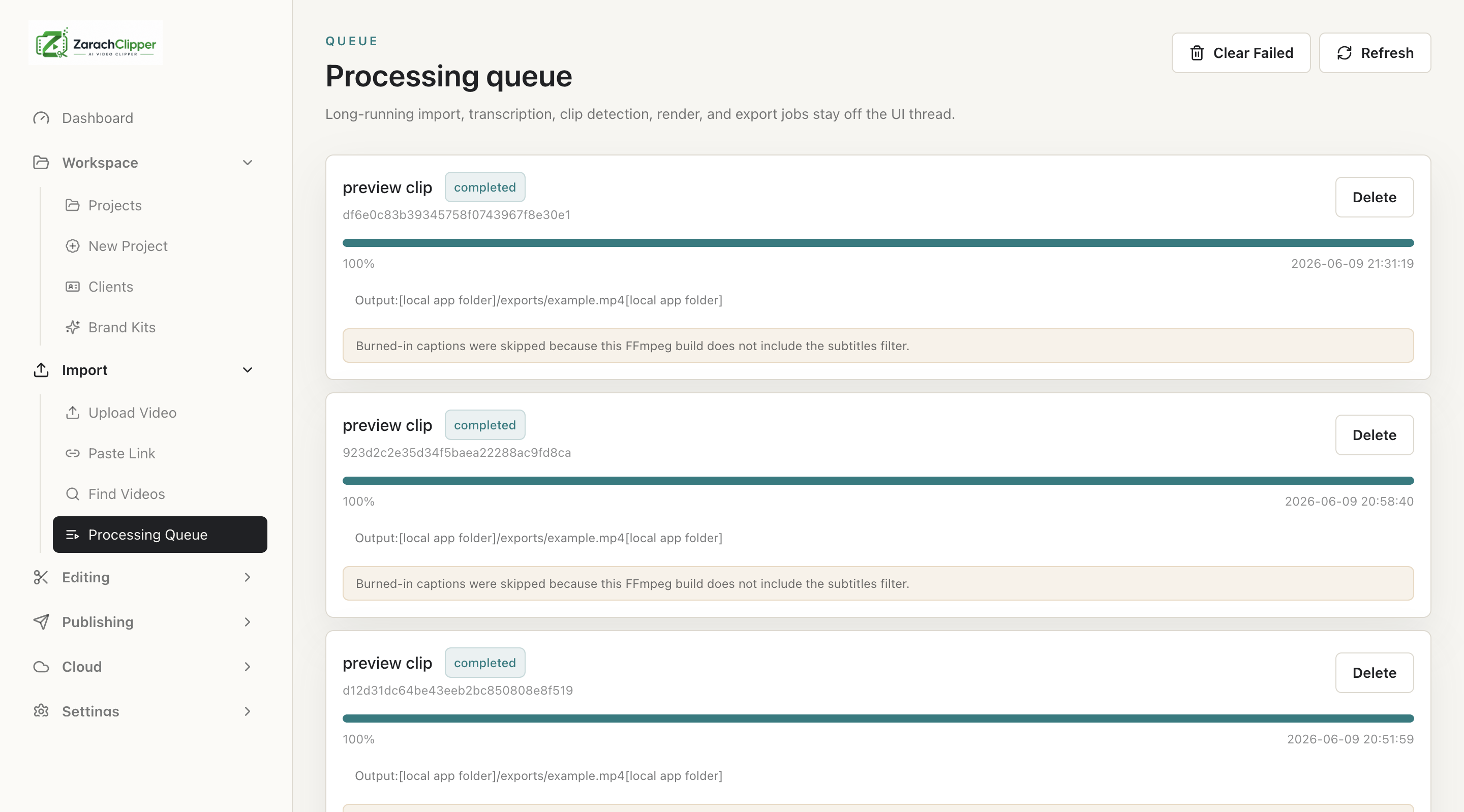
What To Check On The Screen
- Status matches current work
- Failed jobs show useful messages
- Retry is used after fixing the cause
Expected Result
Users can monitor and recover jobs instead of guessing.
Common Mistakes
- Retrying without fixing missing media/tools
- Cleaning storage during running jobs
Troubleshooting
If a job is stuck, restart the engine and inspect Error Logs.