
Desktop Guide
Thumbnail Generator
Create cover images from clip frames with title, blur, logo, platform templates, and PNG/JPG export.
What This Feature Does
Thumbnail Generator helps choose a frame, add title text, blur background, overlay logo, choose platform template, export PNG/JPG, and save the cover image.
Why Users Need It
Users need covers for organization, review, and platforms that show thumbnails.
Where To Find It
Editing -> Thumbnails.
Before You Start
- Clip or source frame available
- Logo permission if using logo overlay
Step-by-Step Guide
- Open Thumbnails.
- Select clip.
- Choose frame timestamp.
- Add title.
- Apply blur if needed.
- Add logo overlay if approved.
- Choose platform template.
- Export PNG or JPG.
Screenshot Section
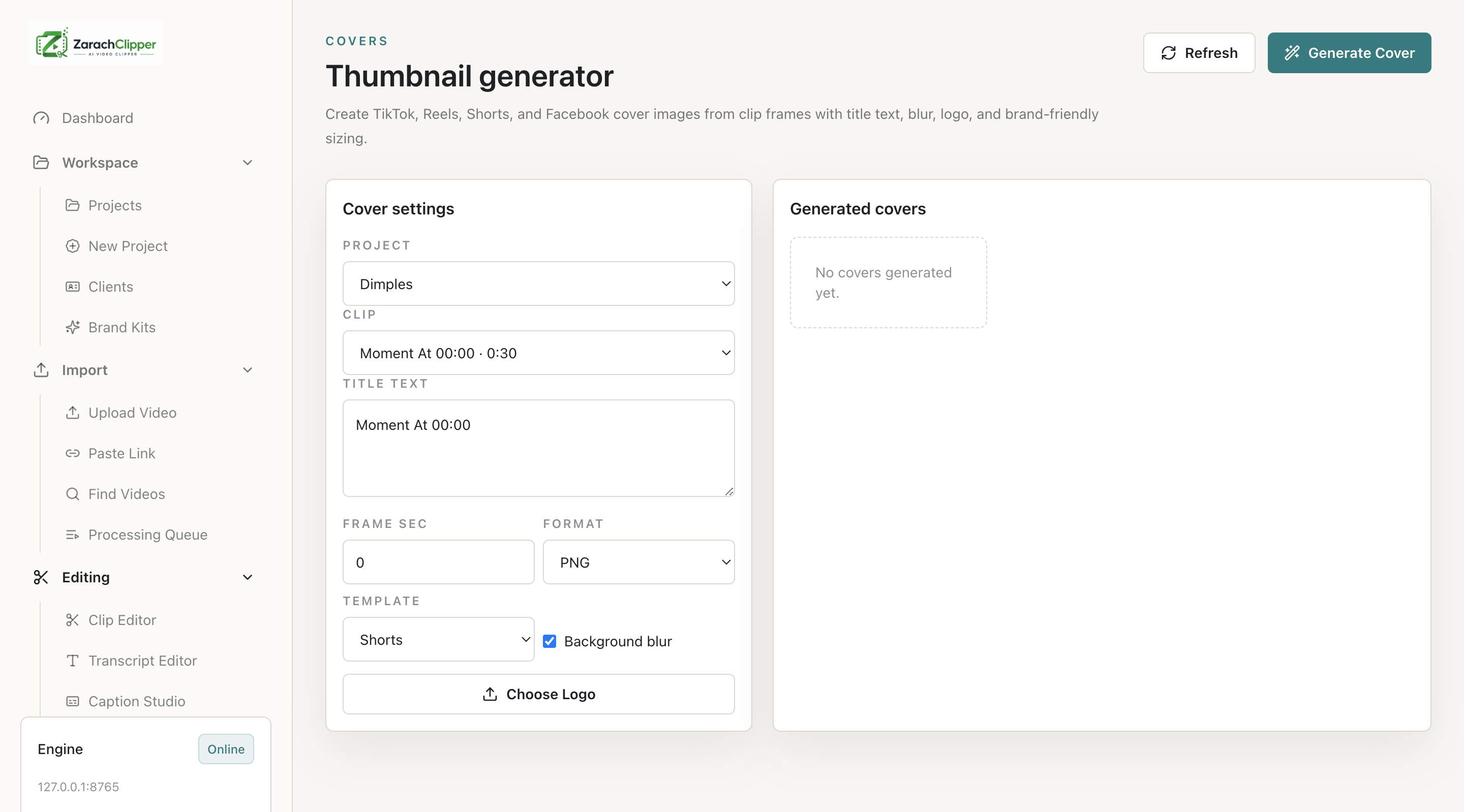
What To Check On The Screen
- Frame is clear
- Title is readable
- Logo is licensed
Expected Result
User exports a cover image saved with the project.
Common Mistakes
- Choosing blurry frame
- Adding too much text
Troubleshooting
If preview is blank, confirm source media is available.