
Desktop Guide
Smart Crop
Create 9:16, 1:1, and 16:9 crops with face detection or manual fallback.
What This Feature Does
Smart Crop reframes video for vertical, square, and landscape outputs. It can use face detection where available and manual crop center controls when tracking is unavailable.
Why Users Need It
Users need it to keep speakers, products, or screen content visible in social formats.
Where To Find It
Editing -> Smart Crop.
Before You Start
- Source media available
- Clip selected
- OpenCV available for face detection if needed
Step-by-Step Guide
- Open Smart Crop.
- Select clip/source.
- Choose 9:16, 1:1, or 16:9.
- Use face tracking if available.
- Adjust manual crop center if needed.
- Preview crop.
- Save crop settings.
- Export with saved crop.
Screenshot Section
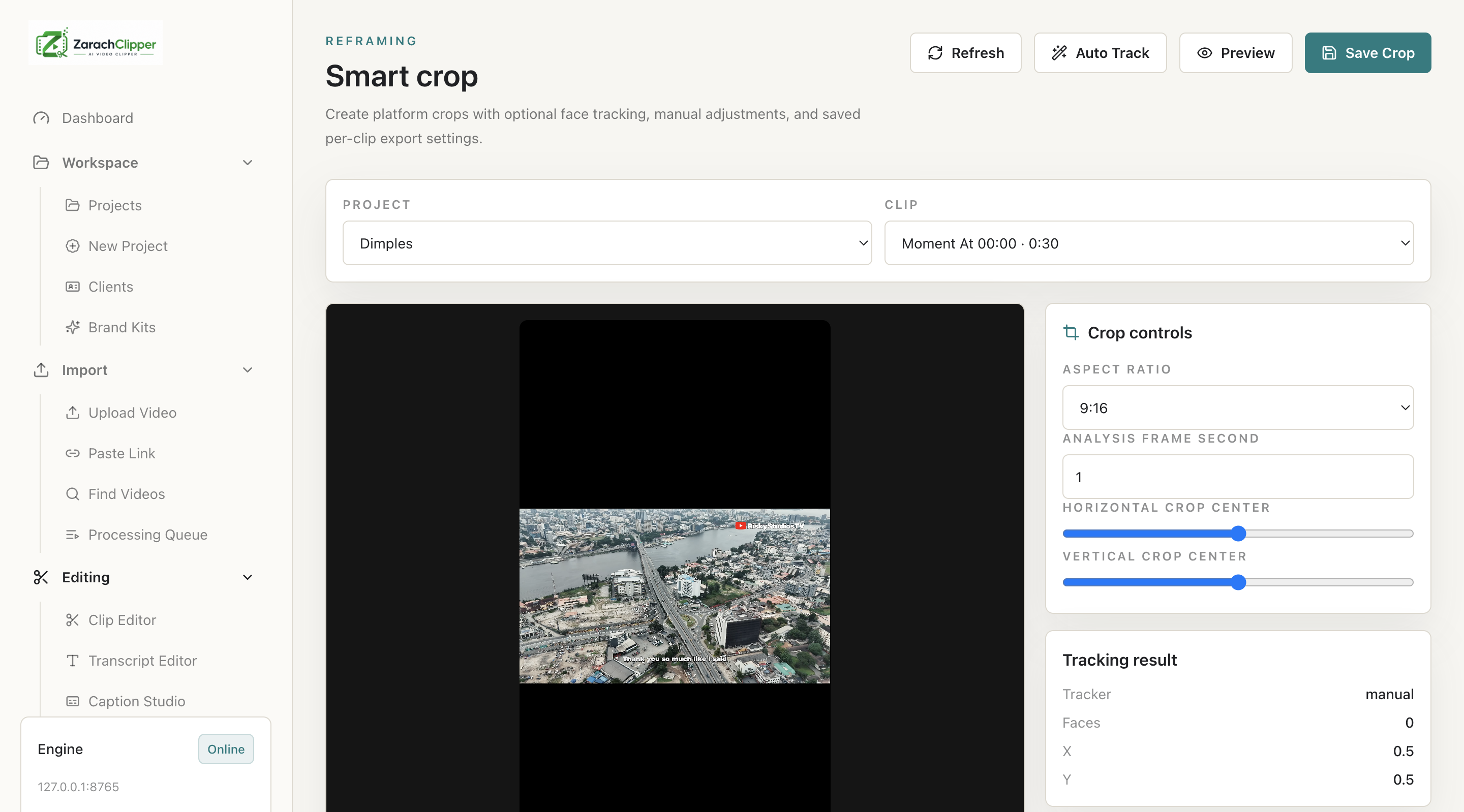
What To Check On The Screen
- Subject remains visible
- Captions are not cropped
- Aspect ratio matches platform
Expected Result
The clip exports with correct framing for the chosen platform.
Common Mistakes
- Relying on face detection when subject is unclear
- Cropping out captions
Troubleshooting
If face detection fails, use manual crop controls.