
Desktop Guide
Brand Kits
Create reusable branding for clients, channels, and campaigns.
What This Feature Does
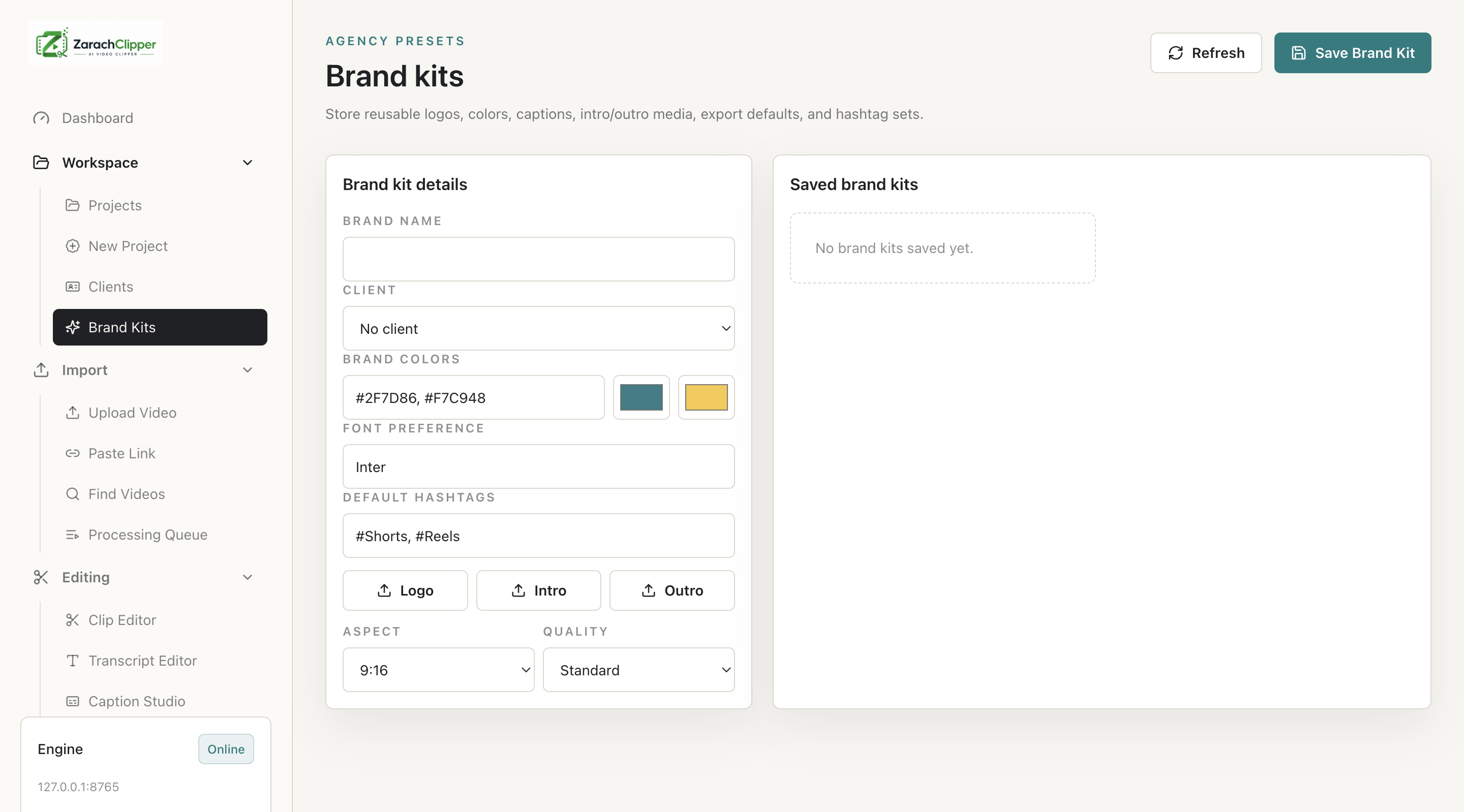
Brand Kits store logo, brand colors, font preferences, watermark position, intro/outro preferences, default hashtags, and project/client assignment.
Why Users Need It
Agencies need them to keep client clips consistent and reduce repeated setup.
Where To Find It
Workspace -> Brand Kits.
Before You Start
- Approved logo
- Brand colors
- Watermark and usage permission
Step-by-Step Guide
- Open Brand Kits.
- Create a brand kit.
- Add logo, colors, font, watermark position, intro/outro, and hashtags.
- Assign to project/client.
- Apply during export in Clip Editor.
Screenshot Section
What To Check On The Screen
- Correct client kit selected
- Logo path exists
- Watermark does not cover captions
Expected Result
Clips use consistent client/channel branding.
Common Mistakes
- Using wrong client brand
- Using logo without permission
Troubleshooting
If watermark is missing, verify file path and asset permissions.